Vynix User Guide

Full guide to creating with Vynix.

Learn how to use prompts, models, images, videos, audio, chat, credits, and history in simple steps.

Quick Start

Use Vynix like this

Most Vynix tools work the same way. Pick what you want, choose a model, add your prompt or file, then tap Create.

1

Open Vynix

Sign in so your credits, history, and creations are saved.

2

Choose a path

Use Prompts for ready ideas, or Capabilities when you know the tool you need.

3

Pick a model

Different models do different jobs, like video, voice, background removal, or image repair.

4

Create and save

Write simple instructions, tap Create, then find the finished result in History.

Prompt Library

Start with ready-made prompts

The Prompt Library is the easiest place to start. It gives you ready prompts for images, videos, audio, and chat. You can use a prompt as it is, or change the words to make it yours.
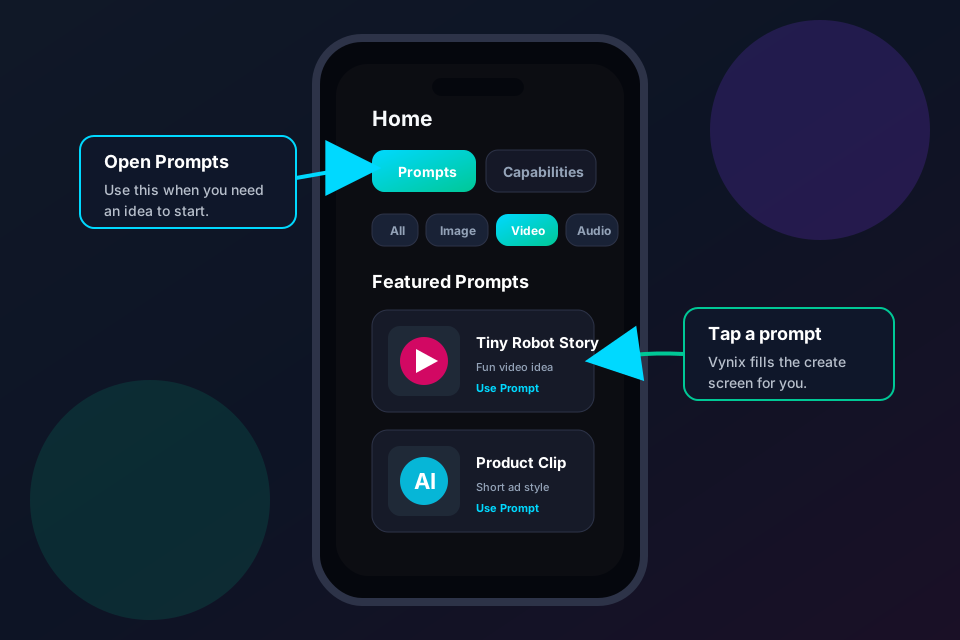
  1. Open the Prompts tab on Home.
  2. Use the filter chips: All, Image, Video, Audio, or Chat.
  3. Tap a prompt card you like.
  4. Change names, places, colors, style, or any blank fields.
  5. Tap Create when it looks right.
Vynix prompt library mockup
Prompts help when you do not know what to write.

Models and Tools

Use the right model for each job

A model is an AI tool. Some models make videos. Some fix images. Some make voices. Choose the model that matches your goal.

Generate Image

Make a new picture from text.

Edit Image

Change part of an existing picture.

Remove Background

Cut the background out of a photo.

Upscale

Make an image sharper and larger.

Restore Face

Clean up blurry or old faces.

Generate Video

Make a short video from text.

Image to Video

Make a still image move.

Extend Video

Make a video longer when the tool supports it.

Talking Head

Make a face speak with audio or text.

Lip Sync

Match mouth movement to speech or music.

Text to Speech

Turn written words into a voice.

Chat

Ask questions, write ideas, or plan content.
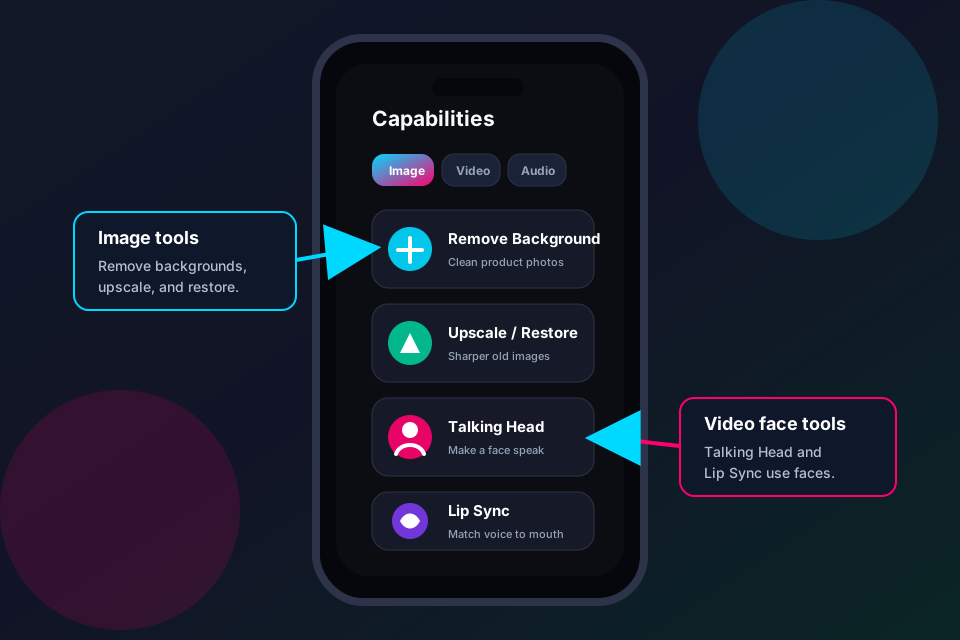
Vynix model use cases mockup
Choose the tool that matches the result you want.

Create Video

Make a video

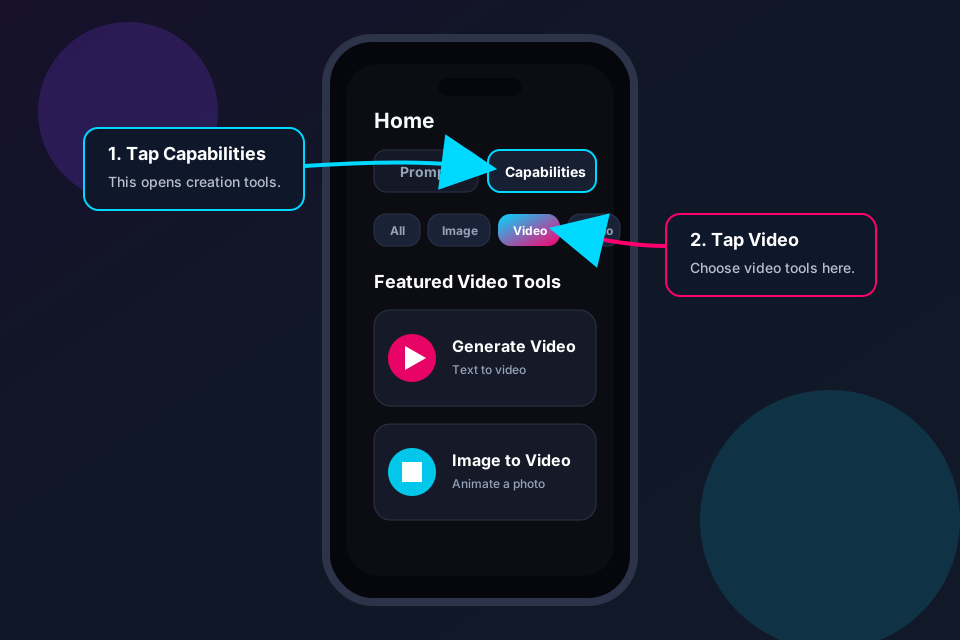
  1. Open the Home screen.
  2. Tap Capabilities.
  3. Tap the Video tab.
  4. Choose a video tool, like Generate Video, Image to Video, Talking Head, Lip Sync, or Extend Video.
  5. Select the model you want to use.
  6. Write what should happen in the video. Add an image or audio file if the model asks.
  7. Tap Create and wait. Videos can take a few minutes.
Vynix video tab mockup
First choose Capabilities, then choose Video.

Choose Model

Pick the AI model

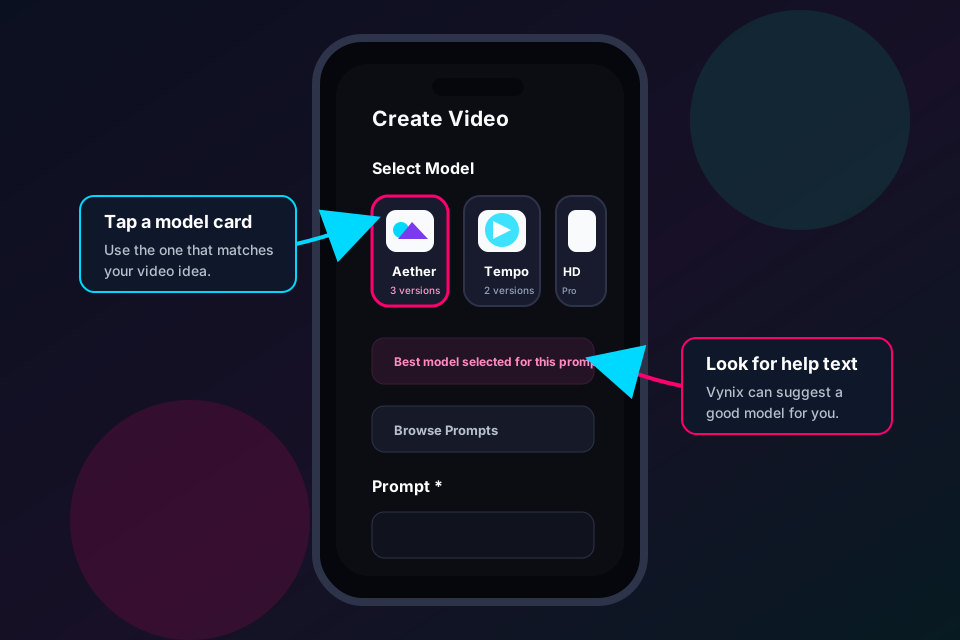
  1. Look at the model cards.
  2. Tap the model that sounds best for your idea.
  3. If there is a version picker, choose the version you want.
  4. Use fast models for tests. Use stronger models for final work.
  5. If you are not sure, start with the suggested or featured model.
Vynix model selection mockup
Tap a model card to open the creation screen.

Create Image

Make or improve an image

  1. Tap Capabilities.
  2. Tap the Image tab.
  3. Choose the right tool: Generate Image, Edit Image, Remove Background, Upscale, Restore Face, or Face Swap.
  4. Pick a model.
  5. Write what the image should show or what should change.
  6. Add a reference image only if the model asks or if you want the AI to follow it.
  7. Tap Create.

Easy prompt

A small robot watering a red flower on Mars, bright colors, soft sunlight, cute 3D style.

Create Audio

Make audio or voice

  1. Tap Capabilities.
  2. Tap the Audio tab.
  3. Choose an audio tool, like Text to Speech.
  4. Pick a voice or model.
  5. Type the words you want the voice to say.
  6. Tap Create.
  7. Use the audio later with tools like Talking Head or Lip Sync when supported.

Keep it short first

Try one or two sentences. When it sounds good, make a longer version.

Chat
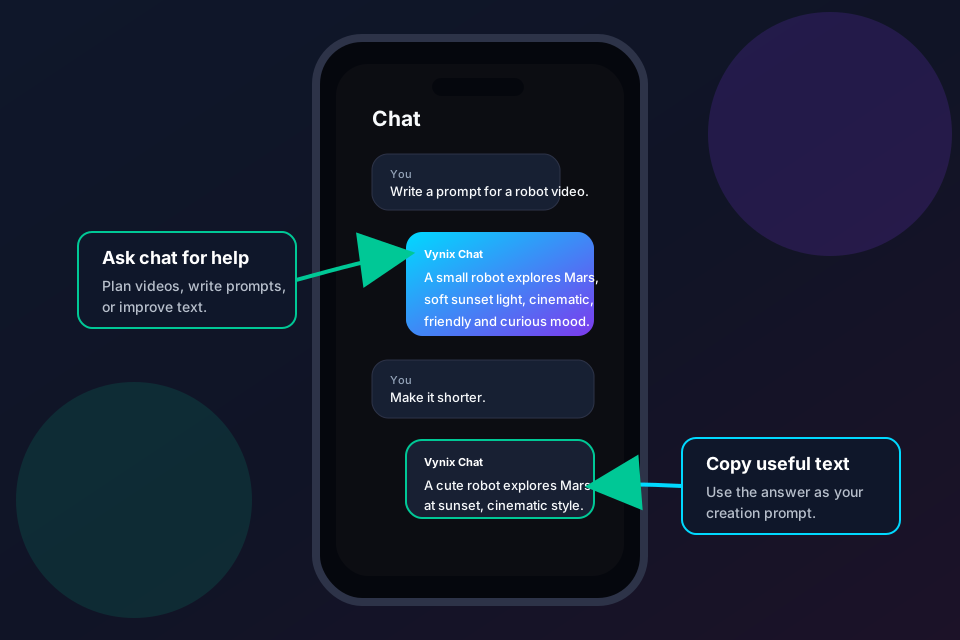
Use chat for help and ideas

  1. Open the Chat area or choose a chat model.
  2. Ask a clear question or explain what you need.
  3. Use chat to write prompts, plan videos, rewrite text, translate ideas, or brainstorm names.
  4. Copy the answer into a creation prompt if it helps.
  5. Ask follow-up questions to improve the result.
Vynix chat feature mockup
Chat helps you plan, write, and improve prompts.

Create Screen

Fill the creation screen

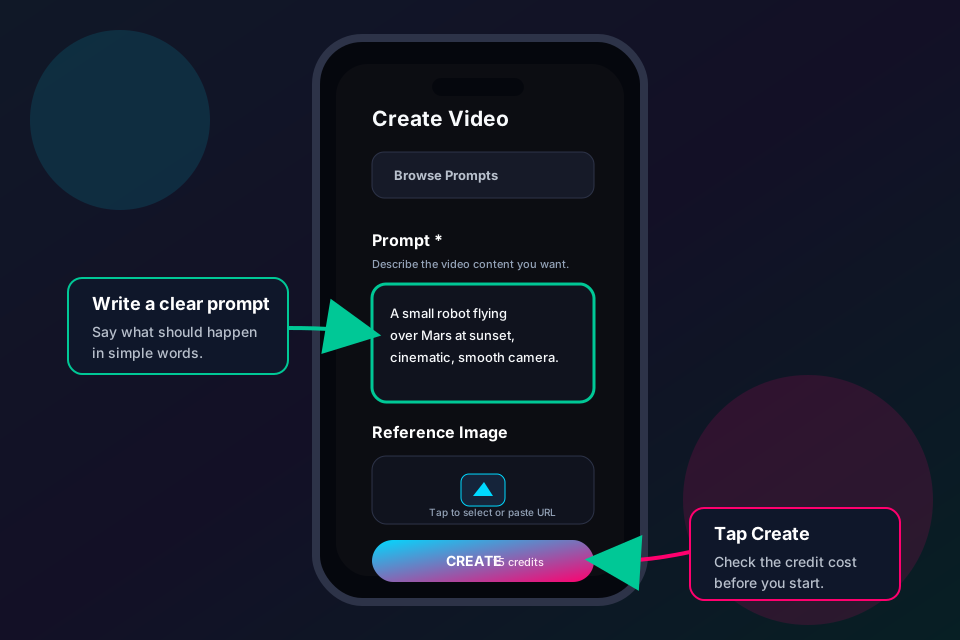
  1. Write one clear sentence first.
  2. Add details like style, color, place, mood, camera view, voice, or length.
  3. Upload or paste a file link if the model asks for an image, video, or audio.
  4. Open advanced settings only if you need more control.
  5. Check the credit cost on the Create button.
  6. Tap Create.
Vynix creation form mockup
The prompt box tells the AI what to make.

History

Find, save, or share your result

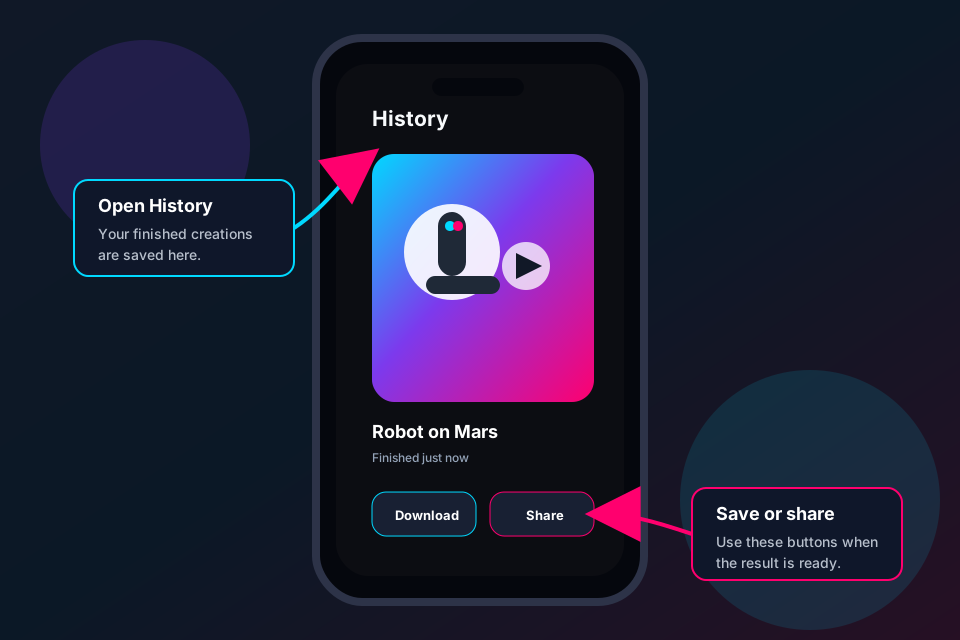
  1. Open History.
  2. Tap your finished creation.
  3. Use Download to save it to your phone.
  4. Use Share to send it to another app.
  5. Delete old creations you no longer need.
Vynix result history mockup
Finished creations stay in History.

Credits

Understand credits

  1. Credits are used when you create something.
  2. The Create button shows the cost before you tap it.
  3. Video usually costs more than image because it takes more work.
  4. You can get credits from daily rewards, rewarded ads, or credit packs.
  5. If you do not have enough credits, open the Store.

Tip

Start with a cheaper model while testing your idea. Use stronger models after your prompt is ready.

Better Results

Simple prompt tips

Say the main thing

Example: A cat astronaut riding a bicycle.

Add the style

Example: cartoon, realistic, anime, 3D, watercolor.

Add details

Example: sunset, blue jacket, close-up, happy mood.

Try again

If the result is not right, change a few words and create again.

Create with Vynix

Put the idea into practice.

Explore AI-assisted image, video, audio, and text workflows in one mobile app.